How to set up an eSIM: the complete guide for any phone
Step-by-step eSIM installation for iPhone, Samsung, Pixel, and other Android phones. Everything you need to go from QR code to working data.
By LTE.app Editorial Team
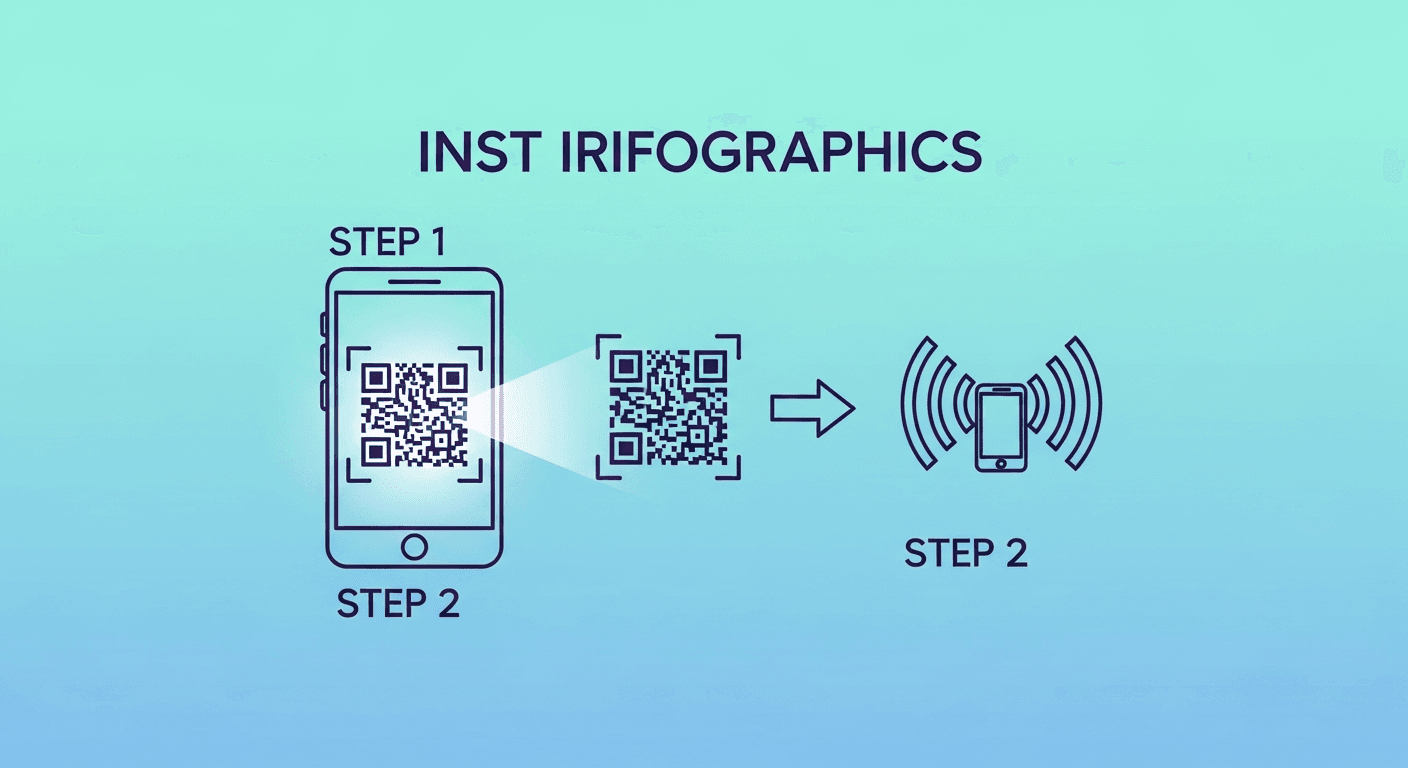
Before you start
Three things to confirm before installing your eSIM:
- Your phone supports eSIM — go to Settings. On iPhone, look for "Add eSIM" under Cellular. On Android, look for "Download SIM" or "Add eSIM."
2. Your phone is carrier-unlocked — a locked phone will reject eSIMs from other providers. iPhone: Settings → General → About → "Carrier Lock: No SIM restrictions." Android: check Settings → About → SIM Lock Status, or call your carrier.
3. You have Wi-Fi — the QR scan downloads the carrier profile. You need internet for the download (30–60 seconds).
iPhone setup
- Settings → Cellular → Add eSIM
- Tap "Use QR Code"
- Scan the QR from your LTE.app order
- Tap "Add Cellular Plan" to confirm
- Label the plan (e.g., "Japan Travel")
- When asked for Default Line, keep your home number as Default Voice
- When asked for Cellular Data, select the new eSIM
Before traveling: Settings → Cellular → tap your eSIM line → Data Roaming: On
Samsung Galaxy setup
- Settings → Connections → SIM Manager → Add eSIM
- Tap "Scan QR code from service provider"
- Scan the QR from your LTE.app order
- Follow prompts to complete setup
- Settings → Connections → SIM Manager → set eSIM as Data SIM
Before traveling: SIM Manager → tap your eSIM → Data Roaming: On
Google Pixel setup
- Settings → Network & Internet → SIMs → Add SIM
- Tap "Download a SIM instead?"
- Scan the QR code
- Follow prompts
- Settings → Network & Internet → SIMs → set eSIM as Preferred SIM for data
After installation: the 2 settings that matter most
- Set the eSIM as your data line — see above for each device
- Enable data roaming on the eSIM — this is the #1 reason eSIMs fail abroad
Both settings must be correct or data will not work even with a perfect signal.
Browse eSIM plans for 196 countries — instant QR delivery, no account required.
Browse Plans